User Guide
This guide aims to provide an overview of can’t-miss features to help you explore your data more effectively.
Key Features
Navigation
Need to jump to view your data from a different perspective, don’t miss the Main Menu.
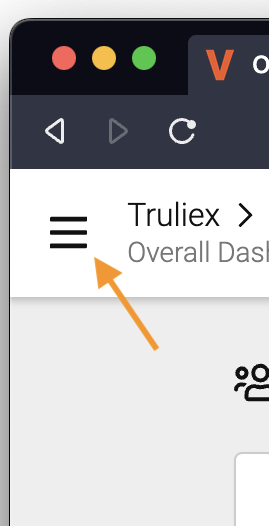
Main Menu available in the upper-left.
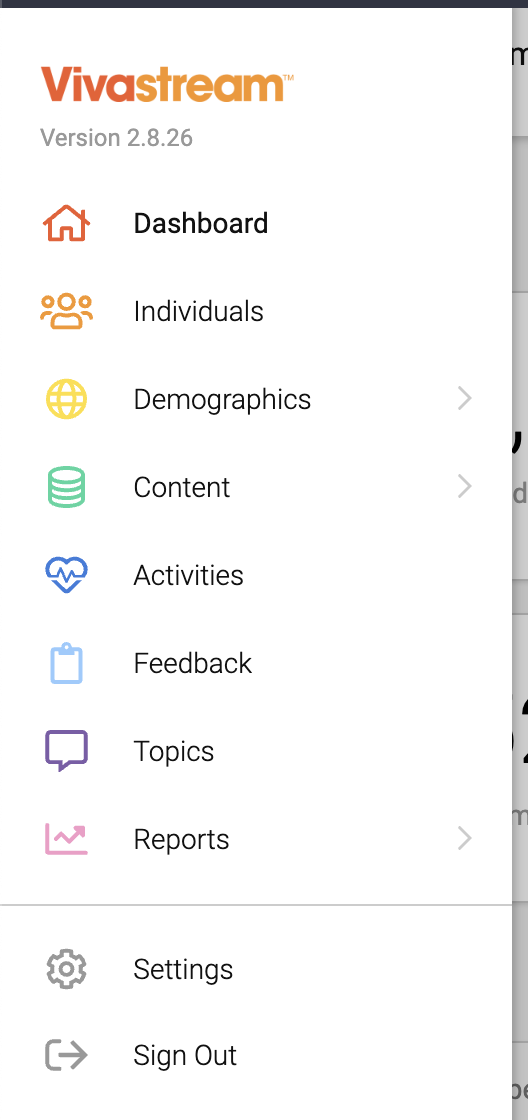
The menu offers a wealth of perspectives from which to view your data.
Roll-ups
Not only does the dashboard allow you to view data at the individual and content [e.g session] level, but it also allows you to view aggregate metrics at, for instance, the Account or Track level. Many additional dimensions are available, based on the data from your event.

Look to the bread-crumbs at the top of the screen for dimensions to aggregate/summarize by.
Filtering
The dashboard offers extensive filtering capabilities, allowing you to slice and dice your data as needed.
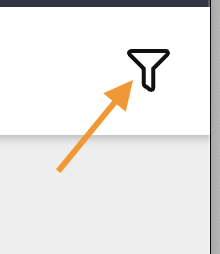
Filter Menu available in the upper-right.
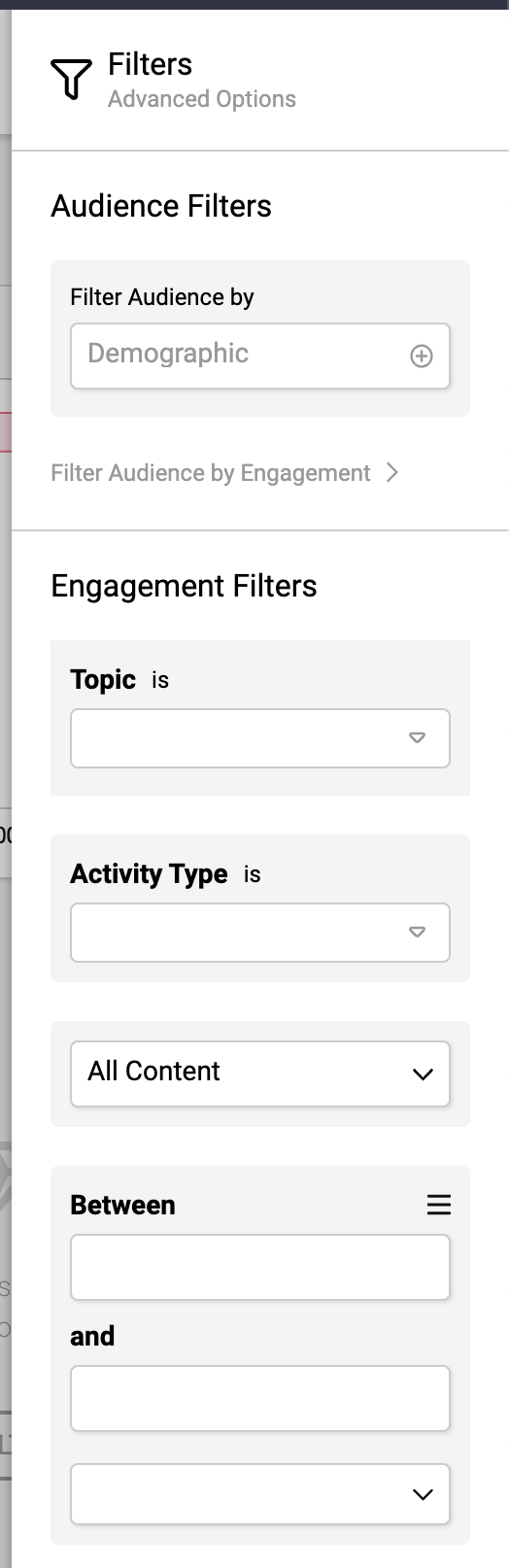
Filter to your heart’s content; apply multiple filters to get as specific as you need.
Table Columns
Looking for more detail when viewing a table in the dashboard? Don’t miss the Table Settings!
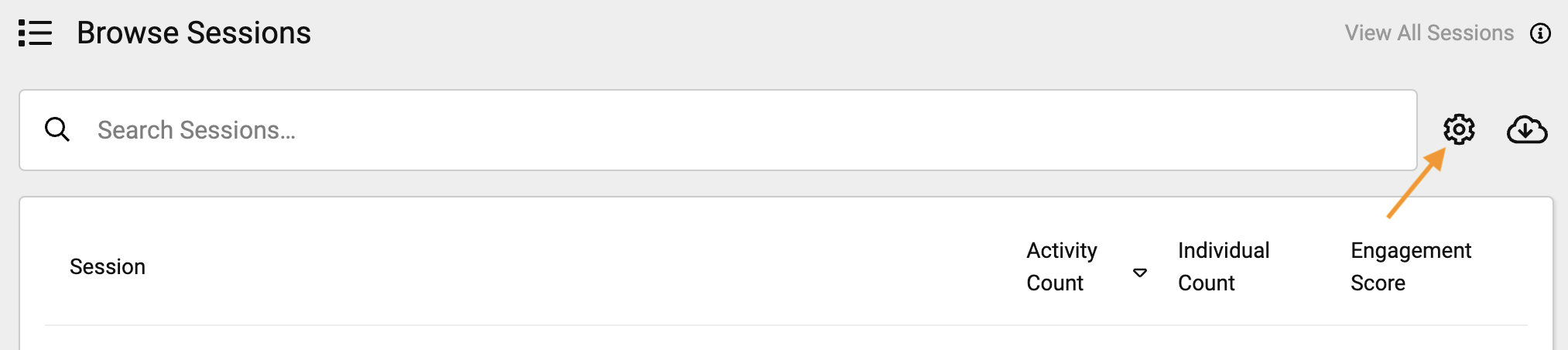
Table Settings are accessed via the gear icon on the upper right corner of the table.
Table Settings allow you to add additional demographics/dimensions to the table as well as additional metrics.
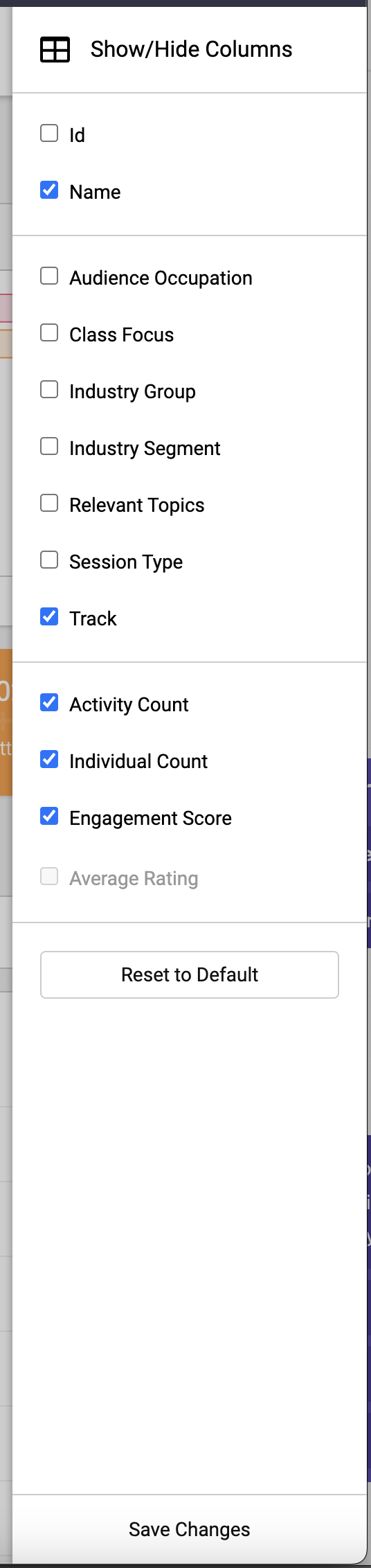
Table Settings allows for customization of the dimensions/metrics displayed.

Don’t forget to hit Save Changes at the bottom to finalize your selection!
Export
To export information from a table [or list of activities], make use of the Export button.
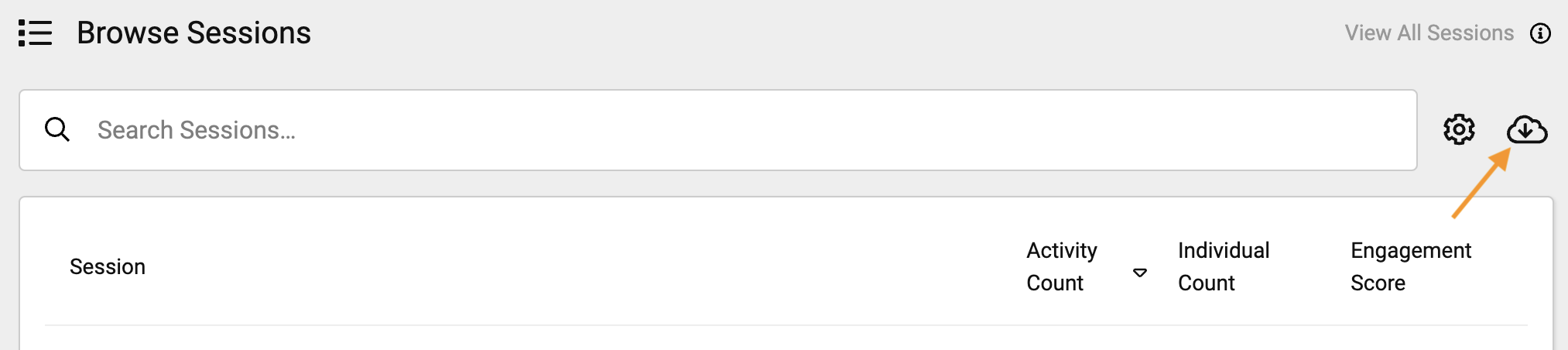
The Export button is found next to the Table Setting gear at the upper-right corner of the table.
Activity-type-specific Metrics
At times, advanced metrics may be available that are only relevant for a specific activity type. For instance:
Avg Ratingonly makes sense when looking at RatingsAvg Time Spent (m)may be available when analyzing Session Attends [Virtual]
Any such metrics become available in the Table Settings menu only after filtering Activity Type down to include that specific activity type.
Custom Reports
If custom reports have been prepared for you, they will be available under the Reports item in the main menu.
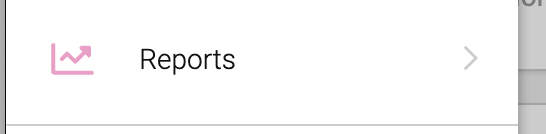
Custom Reports are listed under the Reports item in the main menu.
More Guidance
We’re always happy to connect to provide a personalized walkthrough, or to help focus in on specific analytics. Don’t hesitate to reach out.

Schedule a Walkthrough
To book a walkthrough, simply reach out to your Vivastream Account Representative or email support@vivastream.com